
Get rid of DIV/0 like a pro using the IFERROR function! Learn how to do it easily with Ted Jordan.
Read our quick Excel tutorial to build professional Excel spreadsheets.
When you divide by zero in MS Excel, the result is DIV/0! which is not appealing to read. One solution to this problem is to change the result with IFERROR.
Ready to learn?
What is DIV/0 in Excel
In Microsoft Excel, DIV/0 error appears when you divide by zero or when the divisor value is not available (a blank cell for example).
Get rid of DIV/0
Get rid of the DIV/0 in Excel by using the IFERROR function: =IFERROR(dividend/divisor,”-“). This will display – instead of the DIV/0 error.
Example – Remove DIV/0
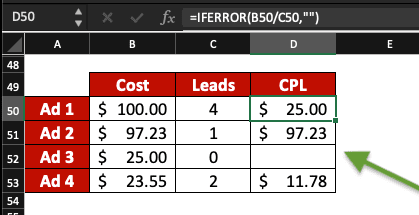
In this example, we want to get rid of DIV/0 error and not display anything in the cell as a result. We are calculating our CPL (Cost Per Lead) per ad.
At the moment, the divide by zero error is appearing as result in cell D52. Our Excel table is not pretty to look at.
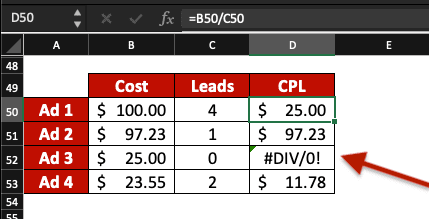
Change the formula =dividend/divisor to =IFERROR(dividend/divisor,””) and the issue is resolved!
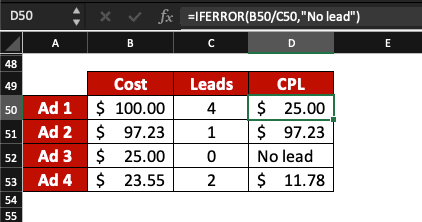
Example – Replace DIV/0 with text
You can replace the divide by zero error message in Excel with text, using IFERROR. Enter =IFERROR(dividend/divisor,”No lead”) to replace it with text.
Example – Get rid of DIV/0 error and change cell colour
If you want to remove DIV/0 in Excel, you can change the colour of cells with no result (because null). To do so, combine IFERROR and Conditional Formatting.
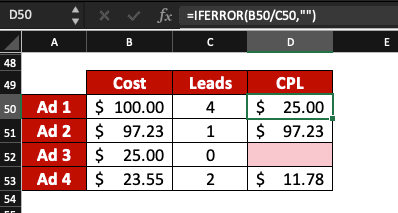
Learn how to use Conditional Formatting in this tutorial: click here.
Now, you know how to get rid of DIV/0 in Excel and how to replace it with zero or text. You discovered it’s also possible to change cells colour to red, for example, instead of seeing the ugly DIV/0! error in Excel worksheets.
Now that you know how to remove DIV/0, what do you want to learn next?